Table of Contents
How to Connect a Website Form to Your CRM Automatically (7 Steps)
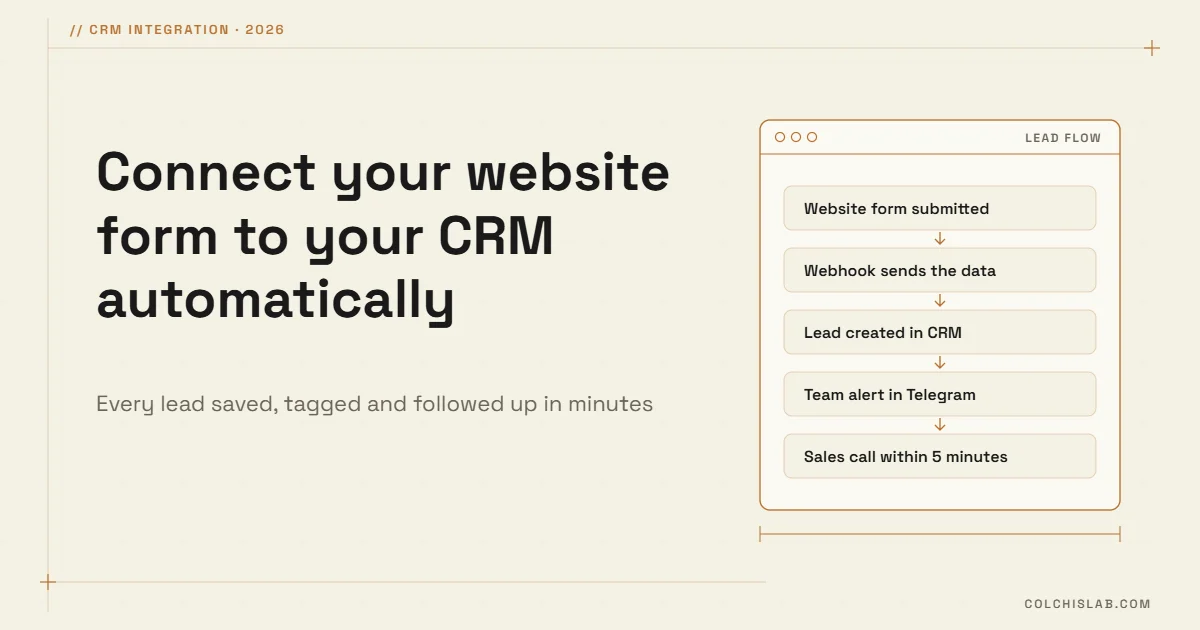
Connecting your website form to CRM automatically means every submission goes straight into the CRM as a lead, through a native CRM form, a plugin, a middleware tool such as Zapier or n8n, or the CRM’s API. Done right, each lead arrives with its source, lands with the right owner and triggers an instant alert, so nobody copies data from email by hand and no enquiry waits until tomorrow.
Below we compare the four methods, walk through a 7-step setup and cover the details that decide whether your lead data stays clean: tracking, duplicates, consent and spam.
Table of Contents
Why speed to lead matters
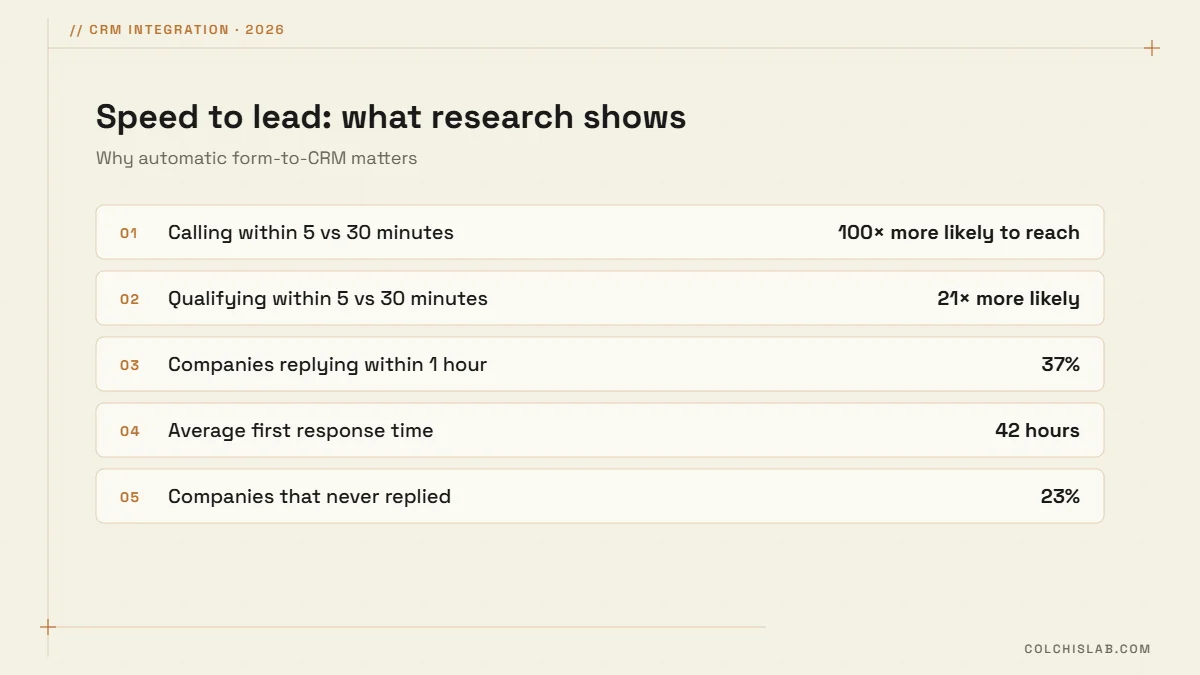
The reason to connect each website form to CRM automatically is not tidiness, it is speed. The Lead Response Management study by MIT and InsideSales.com found that calling a lead within 5 minutes instead of 30 made it about 100 times more likely to reach them and 21 times more likely to qualify them. A Harvard Business Review study of 2,241 US companies found only 37% replied to online leads within an hour, the average first response took 42 hours, and 23% never replied at all.
4 ways to connect your website form to CRM
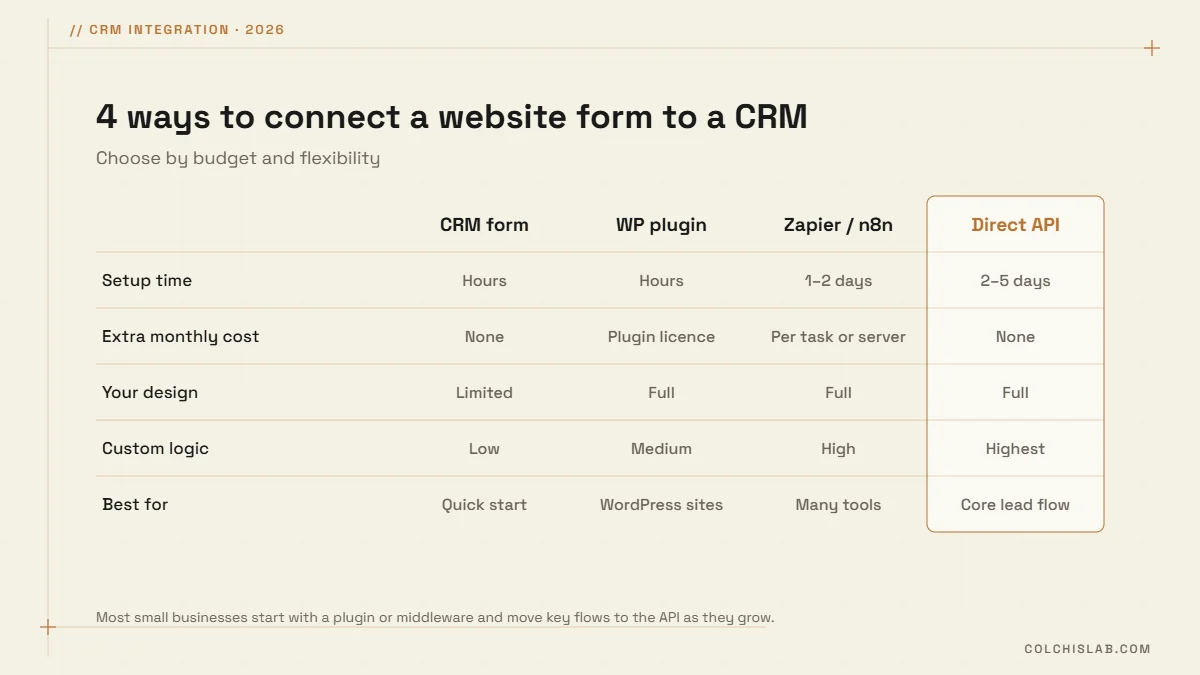
- Native CRM forms. HubSpot, Zoho CRM and Pipedrive all offer embeddable web forms that create contacts or leads directly. Fastest to start, but design and logic are limited.
- WordPress form plugins. Gravity Forms has an official HubSpot add-on, WPForms sends webhooks on its Elite plan, and Elementor Pro forms include a webhook action. You keep your own design.
- Middleware: Zapier, Make or n8n. The form sends a webhook, the tool maps fields and pushes them to the CRM and other apps. Note that Zapier’s webhook trigger needs a paid plan; n8n can be self-hosted.
- Direct API. Your site calls the CRM API directly, for example the HubSpot Forms API, Pipedrive’s Leads API or Zoho CRM’s upsert. Most control, no per-task fees, needs a developer.
Website form to CRM in 7 steps
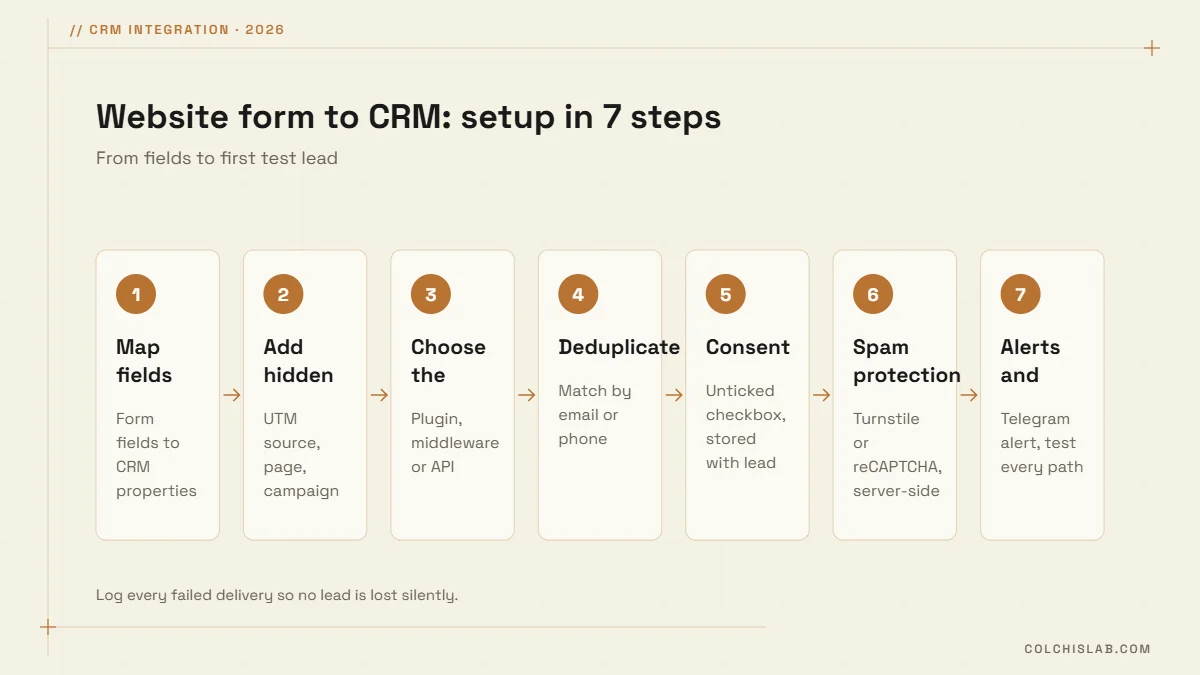
- Map the fields. List every form field and the CRM property it fills: name, phone, email, service, budget, message.
- Add hidden tracking fields. Capture utm_source, utm_medium, utm_campaign and the page URL, so you know which channel brings paying customers.
- Choose the method from the four above, based on your site, budget and how much custom logic you need.
- Deduplicate. Match by email or phone and update the existing contact instead of creating a second one.
- Record consent. If you send marketing, use an unticked consent checkbox and store the consent text and time with the lead, as GDPR-style rules require.
- Block spam server-side. Use Cloudflare Turnstile or reCAPTCHA and verify the token on the server, not only in the browser.
- Set alerts and test. Send an instant Telegram or email alert to the owner, then test every form, language and device before launch.
The details that keep lead data clean
- Phone format: normalise numbers to international format, such as +995, so the CRM and WhatsApp can use them.
- Required vs optional: every extra required field costs conversions. Ask only what sales really needs first.
- Error logging: if the CRM is down, queue the submission and retry. Keep a copy in WordPress or email as a fallback.
- Ownership rules: assign leads by service, language or region automatically.
- Thank-you page: confirm what happens next and when, and track it as a conversion in Google Analytics.
Which CRM and method should you use?
Any CRM with an API works. If you are still choosing, see our comparison of HubSpot vs Zoho vs Pipedrive, and if you are new to the topic, start with what a CRM is. For most small businesses on WordPress, a form plugin with a webhook or a direct API connection gives the best balance of cost and control for sending each website form to CRM.
Forms are only one entry point. Automation bots for small business can push leads from WhatsApp, Telegram or Instagram into the same CRM pipeline, so every enquiry is handled the same way.
When you connect your website form to CRM, connect your messengers too: leads from a WhatsApp chatbot or Telegram bot should land in the same pipeline. Our CRM integration service sets up the whole flow, from form to alert. Tell us which forms and CRM you use and we will map the integration for you.
How do I connect my website form to a CRM?
Use the CRM’s own embeddable form, a form plugin with a CRM add-on or webhook, a middleware tool such as Zapier or n8n, or a direct API connection. Map the fields, test, and add alerts.
Can I connect Contact Form 7 or Elementor forms to a CRM?
Yes. Elementor Pro forms have a webhook action, and Contact Form 7 can send data through add-ons or middleware. The webhook is then mapped to your CRM fields.
Do I need Zapier to connect a form to my CRM?
No. Zapier is convenient, but its webhook trigger requires a paid plan. Native CRM forms, plugins, a self-hosted n8n or a direct API connection all work without it.
How do I track where each lead came from?
Add hidden form fields that capture UTM parameters and the page URL, and map them to CRM properties. Then you can report which channels bring customers, not just leads.
How do I avoid duplicate contacts in the CRM?
Match new submissions by email or phone and update the existing record instead of creating a new one. Most CRM APIs support this as an upsert.
Is it GDPR compliant to send form data to a CRM?
It can be. Collect only what you need, explain how you use the data, use an unticked checkbox for marketing consent, store the consent with the lead and sign a data processing agreement with your CRM provider.